


Bear. Typence
Typence keeps translation inside the sentence. Type Chinese in any macOS app and English replaces it at the cursor; guidance, typing practice, and vocabulary stats turn real writing into study.
Key Features
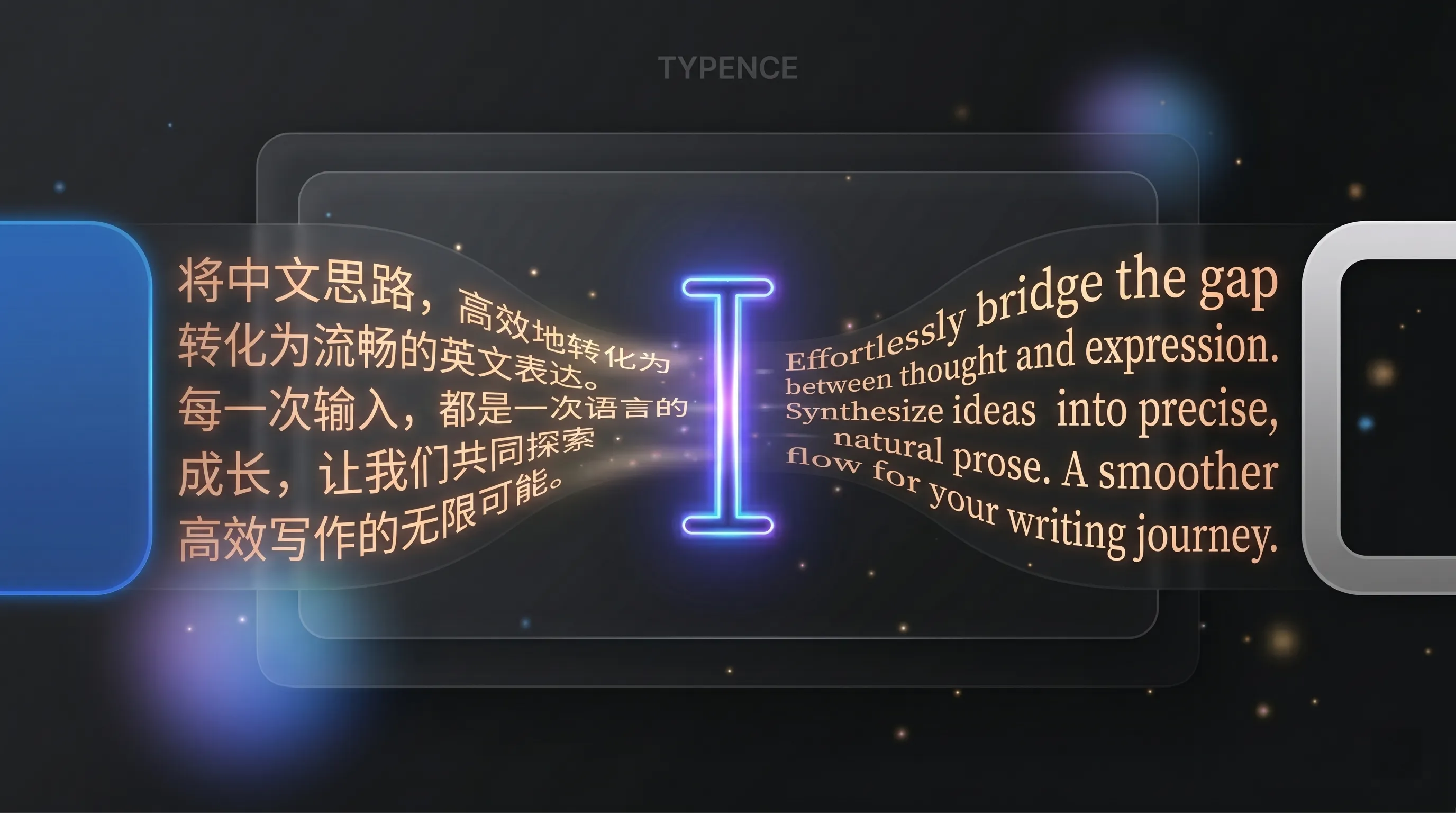
Bilingual writing, one shortcut away
The macOS native bilingual writing and learning assistant that transforms every real-world typing scenario into an opportunity for fluency.
Native Workflow, Zero Friction
No more jumping between translation apps and your workspace. Stay in context.
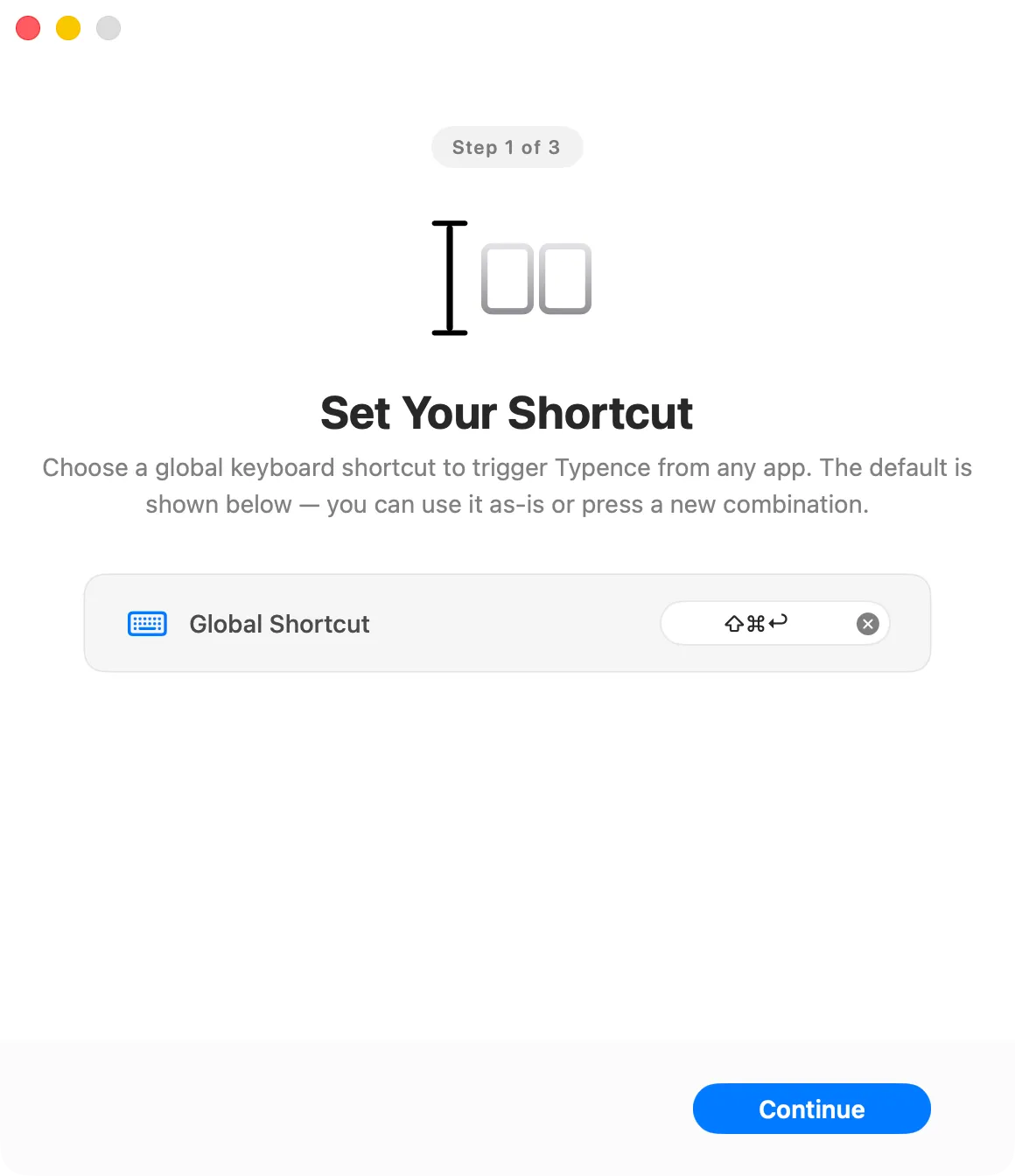
Trigger & Input
Write down your thoughts in Chinese directly within your active application using the global shortcut.
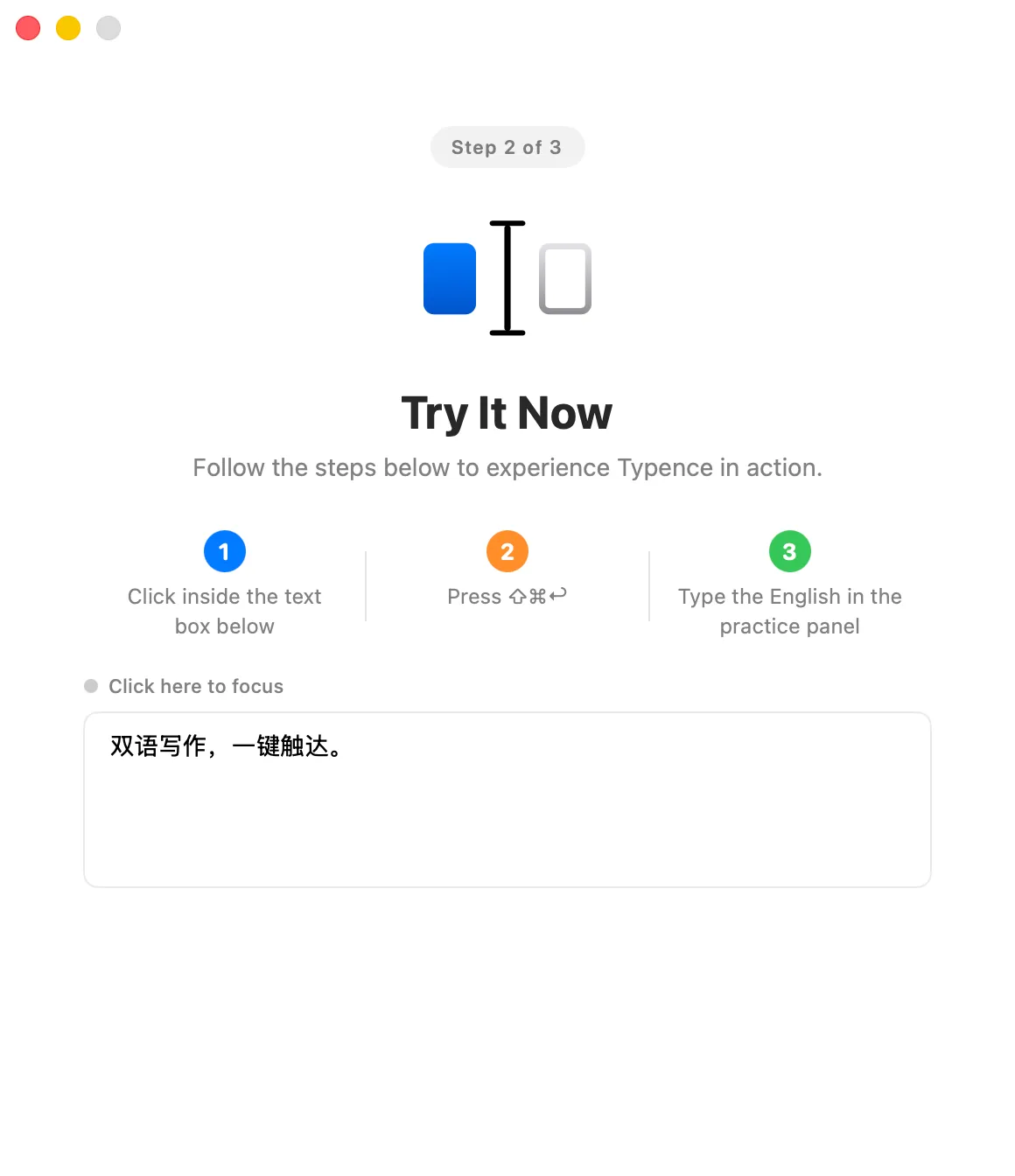
Smart Translation & In-Place Replace
Your configured translation service turns the Chinese text into English and replaces it at the cursor.
Immersive Practice Without The Burden
Features designed specifically around the macOS environment to help you learn naturally while working.
Contextual Assistance Options
Intelligently follows your input cursor or stays anchored in the notch area—choose the presentation that best suits your workflow.
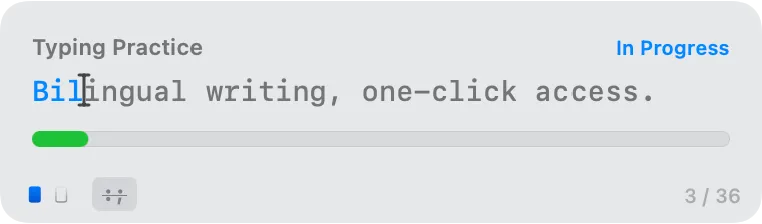
Unobtrusive Panning Viewer
Review your historical expressions on an easy-to-summon floating panel.
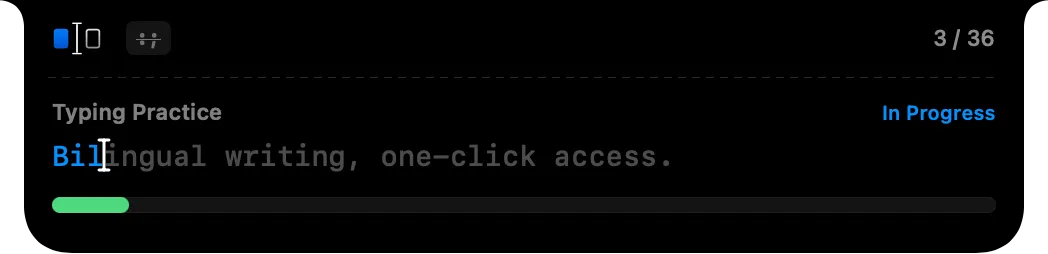
Dynamic Island Guidance
Nestled in the macOS notch, your translation stays present at the top of your screen — never in the way, always within a glance.
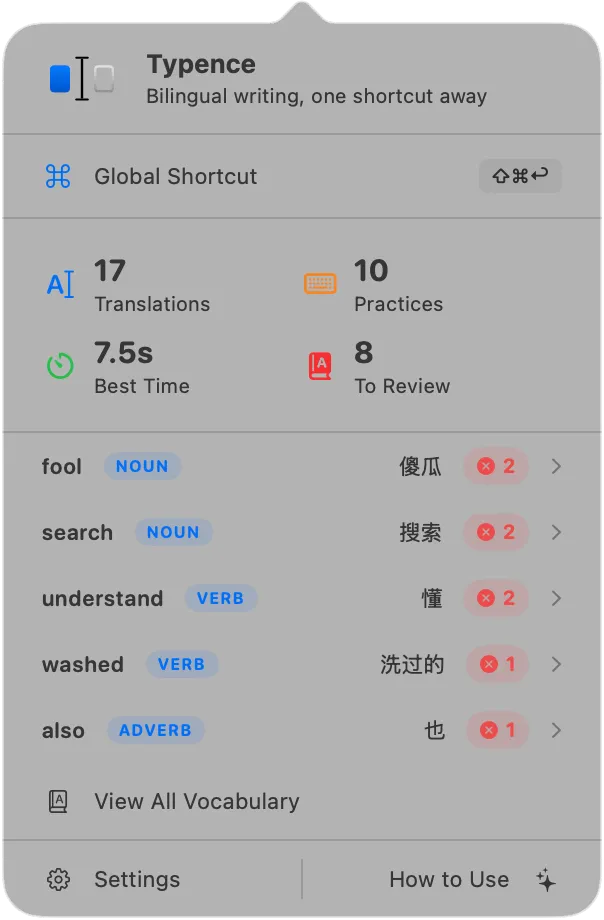
Menu Bar Access
Lightweight core presence. Access everything directly from the macOS status bar.
Your Personal Growth Dashboard
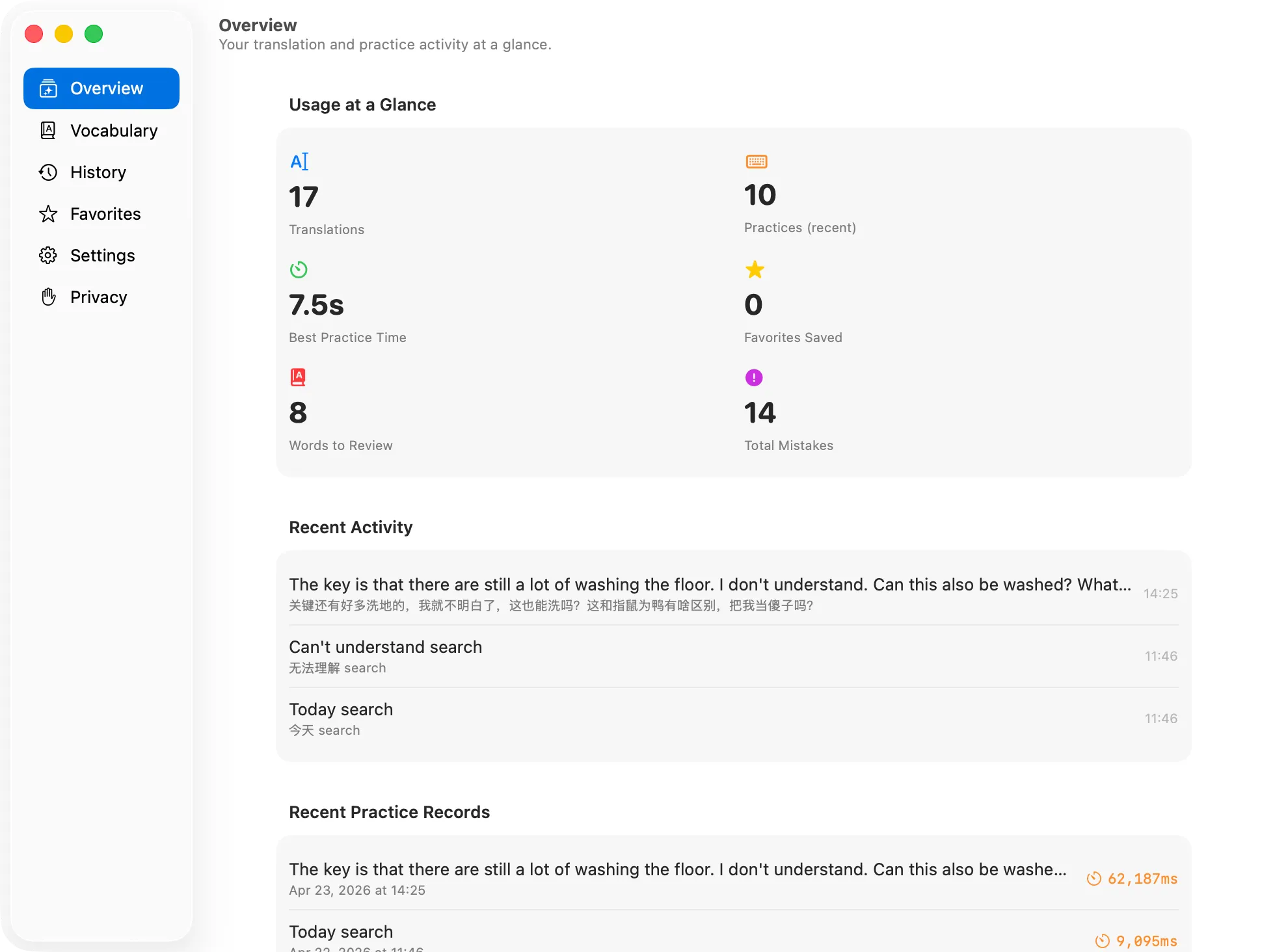
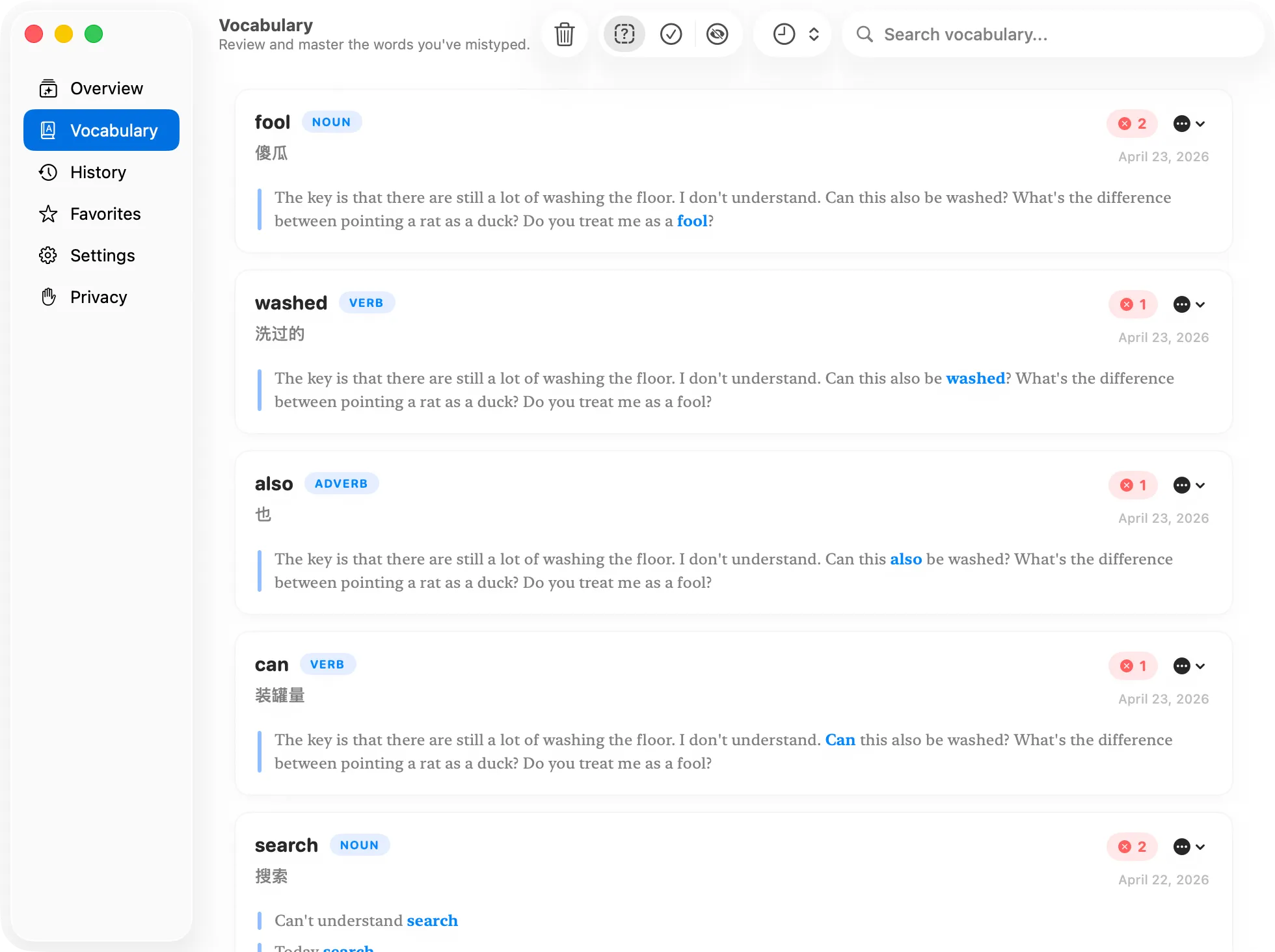
Track your writing habits, identify knowledge gaps, and watch your vocabulary expand automatically.
📊Comprehensive Statistics
📚Vocabulary Ledger
How to use Bear. Typence
Translate and practise while writing
- Download and open the macOS app. In settings, connect to an OpenAI-compatible translation service, choose a model, and test the connection.
- Type Chinese in your writing app and use the global shortcut to translate and replace the text with English in place.
- Use typing practice when you want to learn, or open translation history, vocabulary, and usage statistics from the menu bar.
Device and translation service
- The current version requires a Mac with Apple silicon. On compatible MacBooks, you can preview translations in the notch. A floating window is also available.
- Translation depends on your configured service and model. Review the provider’s data handling and any charges before use.