

Bear. Save - AI-Powered Webpage to Markdown Clipper, Save Quality Content Forever
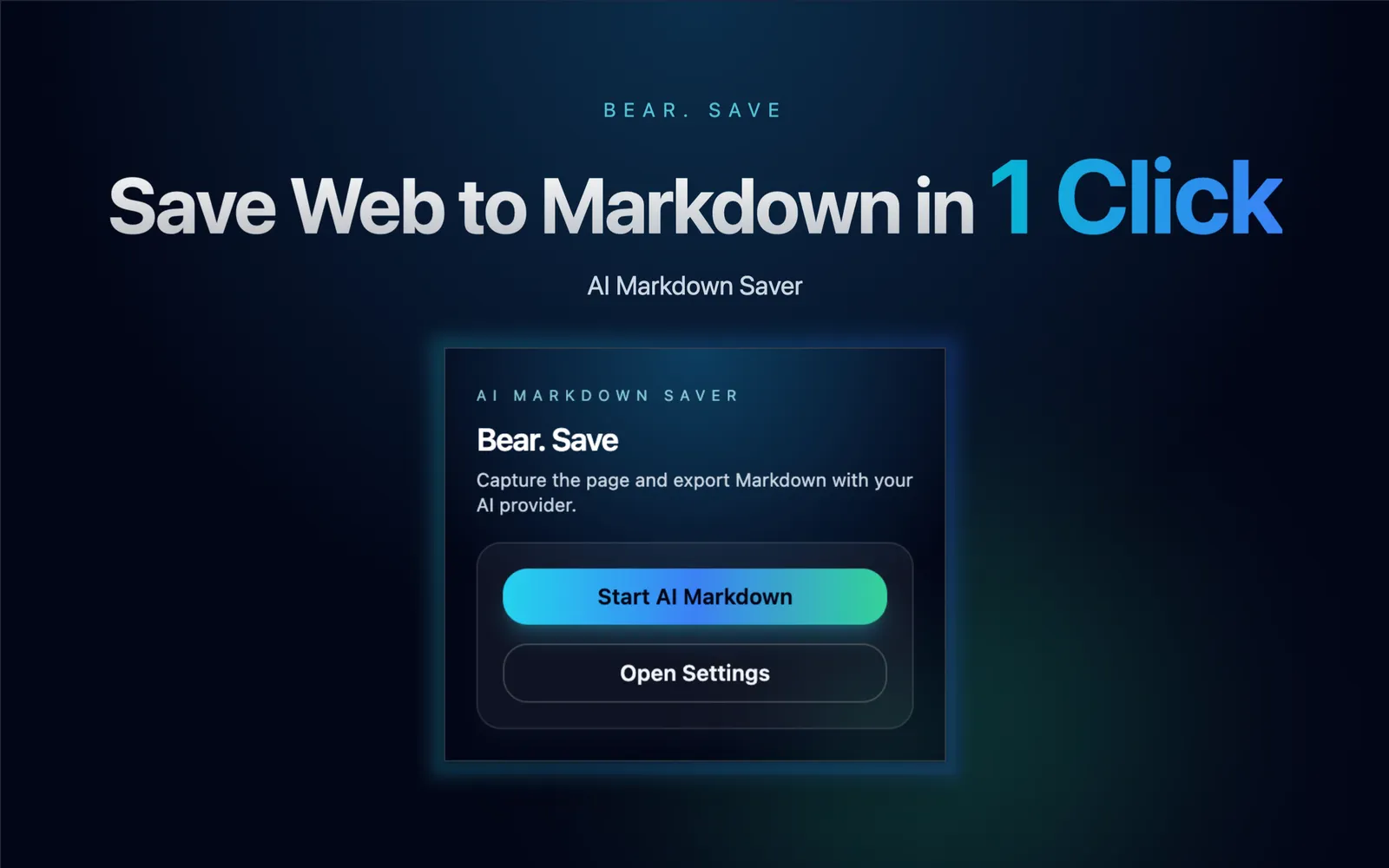
One-click convert webpages to clean Markdown documents, supporting AI intelligent extraction and image embedding, solving the problem of broken bookmarks.
Pain Point: How to Save Quality Content Forever?
Do you also have this habit? When you see a high-quality article, you want to save it locally.
On one hand, it's convenient for full-text search via tools like Alfred later. If you just save a bookmark, you might spend ages looking for it if you don't remember the exact title.
On the other hand, the most heartbreaking moment is when you finally find the link in your bookmarks or history, open it, and see 👀:
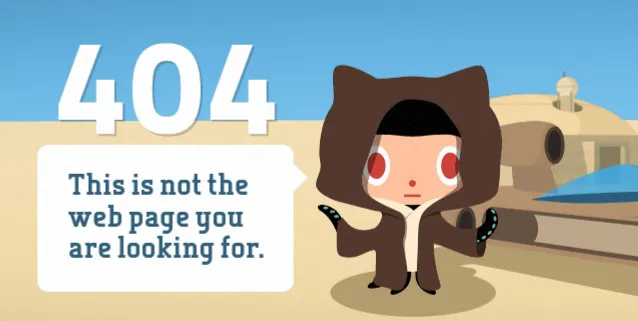
That moment feels like the sky is falling! 🤯.
The Trouble with Existing Solutions
To solve this, I used to use SimpRead. However, since the Chrome V3 extension specification came out, it often gets disabled, affecting the experience.
I also tried several webpage export extensions. Most of them simply save the entire webpage as a single HTML or Markdown file. The problem is that modern webpages are full of distractions (ads, sidebars, recommended readings, etc.). Saving everything indiscriminately results in messy documents and a poor reading experience.
Bear. Save: AI-Empowered Clipper
To solve these pain points, I developed the Bear. Save extension.
Its design philosophy is simple: Keep only the core content.
Core Features
- AI Intelligent Analysis: Utilizes the Mozilla Readability algorithm to pre-extract the main text, significantly reducing AI Token costs, and then uses AI to intelligently optimize the content structure, accurately removing ads and distracting elements.
- Standard Markdown: Saves extracted content as standard Markdown documents, which is particularly friendly for article-type webpages.
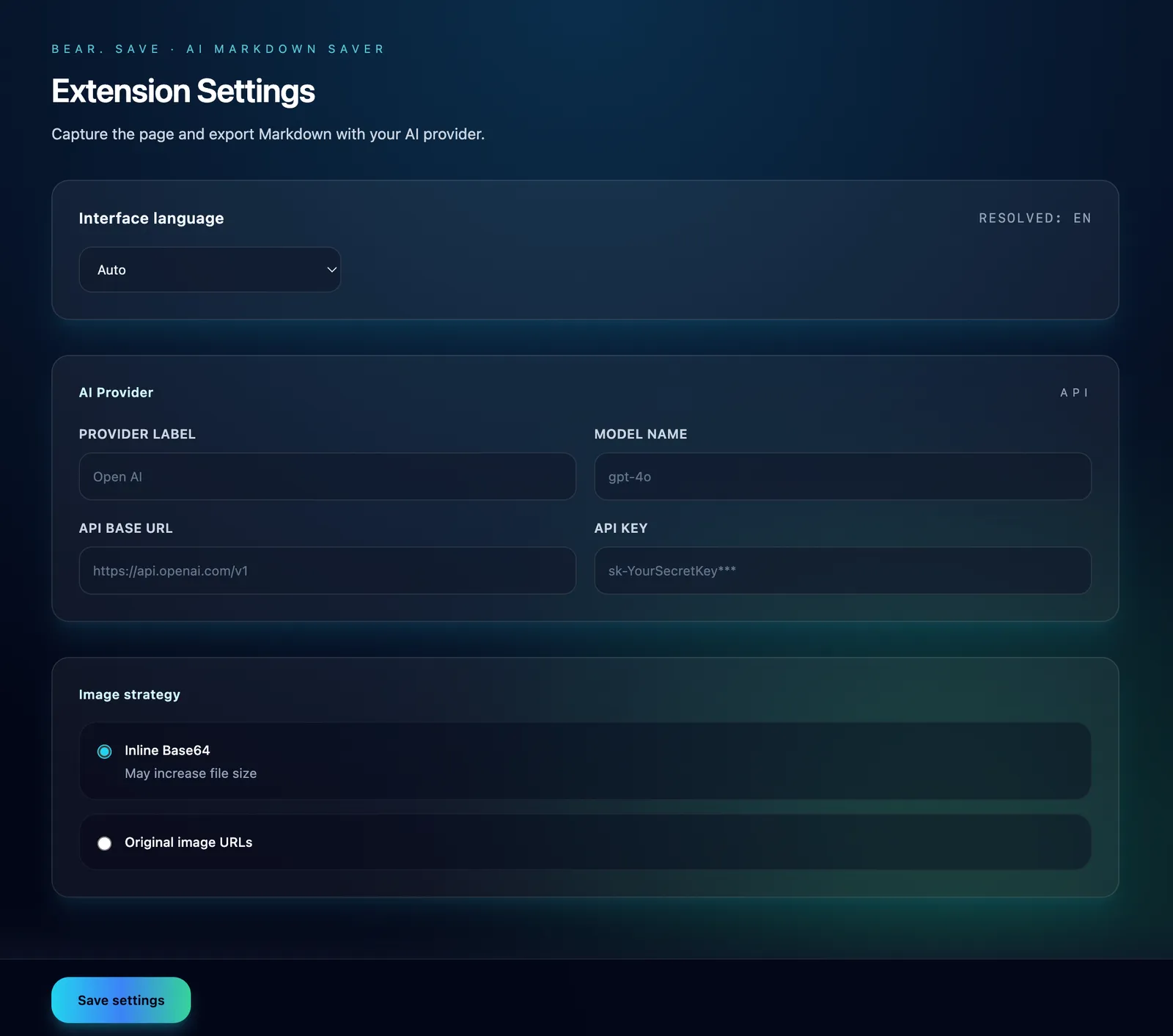
- Flexible Image Processing:
- Embed Mode (Base64): Converts images to Base64 encoding and embeds them directly into the Markdown file. Although the file size increases, you never have to worry about broken image links, truly achieving permanent storage.
- Reference Mode (URL): Retains the original image URLs. This significantly reduces the Markdown file size, suitable for scenarios with low dependency on images.
User Experience
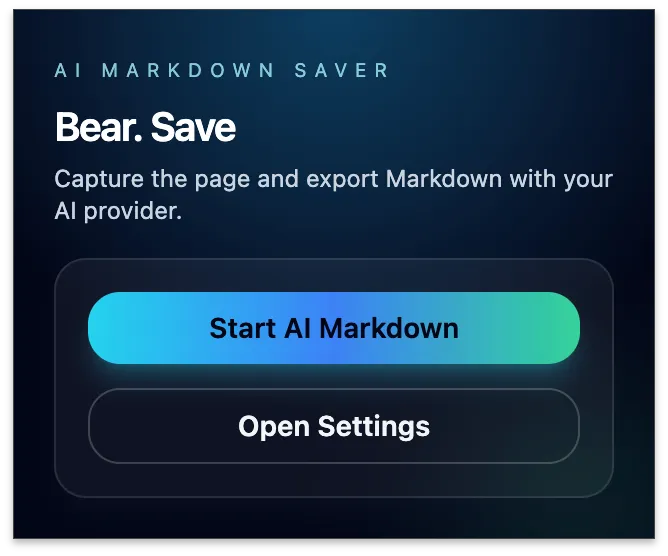
Using Bear. Save is very convenient:
- Context Menu Integration: Quickly save the current webpage as a Markdown file via the browser context menu (right-click).
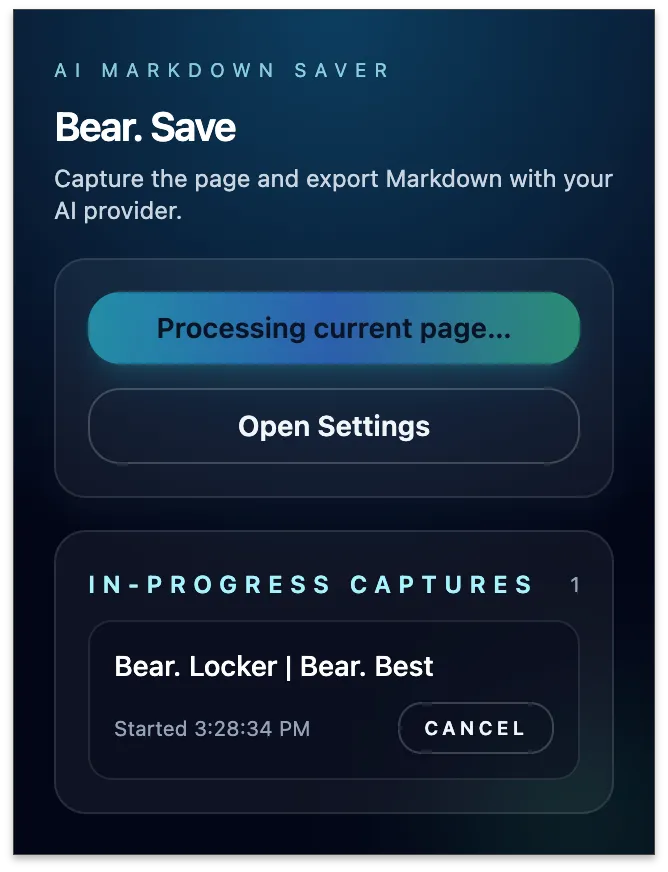
- Asynchronous Background Processing: The process is completely asynchronous. After clicking save, you can safely close the page or browse others; the extension works silently in the background.
- Auto Save: Once processing is complete, a save dialog automatically pops up for you to download.
📝 Note: Currently, Chrome extensions are restricted by security policies and cannot silently write files to the local file system, so a popup is required for user confirmation after processing. If there are better implementation solutions, your feedback is welcome!
Download & Install
Bear. Save is now available on the Chrome Web Store and is completely free. Welcome to download and experience it:
If you find this little tool helpful, please leave a review in the store!